
Guide to billboard banners
We look forward to sharing your billboard banner.
To ensure the best possible result, we have compiled the most important guidelines and specifications so that your format, design, and message are well considered from the very beginning. We've also put together a range of tips and best practices to help you create an online ad that stands out, captures attention, and delivers results.
Checklist
✓ Deliver the banner in three formater: desktop, smaller screens and mobile format
✓ Overhold max. file size at 150 kB (1 MB for HTML5)
✓ Send the material and URL-link til online@nordiskemedier.dk
Format
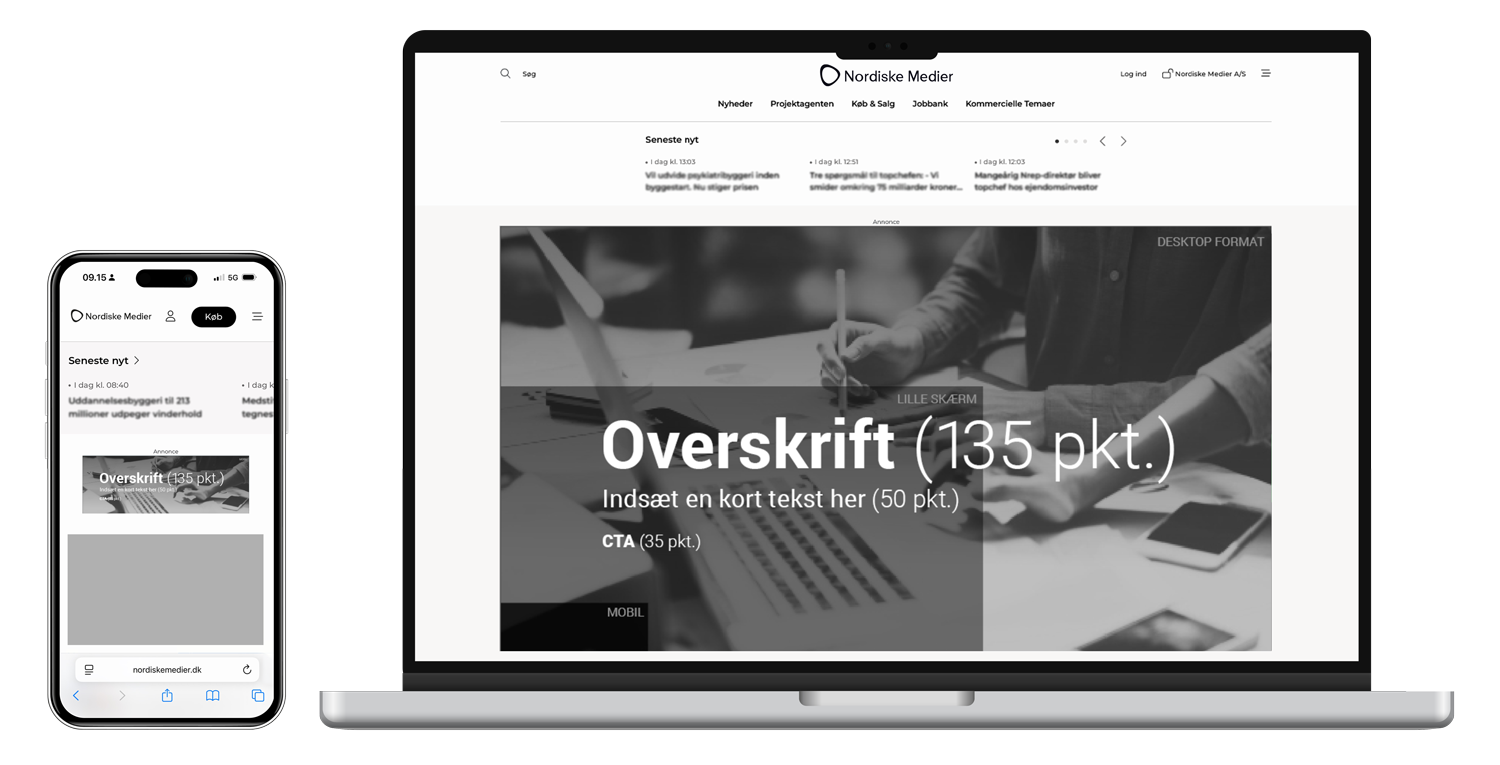
- Desktop: 1568×864 px
- Smaller screens: 980×540 px
- Mobile: 300×100 px
File size
- JPEG/PNG/GIF: max 150 kB
- HTML5: Max 1 MB
Link and delivery
- Send the URL of the website the banner should link to
- Send the material to: online@nordiskemedier.dk
Placement: The billboard banner is placed at the top of the media pages.
Devices: Desktop, tablet, mobile
Desktop: 1568×864 pixels (WxH)
Smaller screens: 980×540 pixels (WxH)
Mobile: 300×100 pixels (WxH)
File formats: JPEG, GIF, PNG, HTML or script
Max file size:
Static image or animated GIF: 150 kB
HTML5 (uncompressed) or script: 1 MB
Note: For video, a maximum duration of 15 seconds is recommended.
Upcoming formats valid from 2027
These formats apply as of 1 January 2027. Use the formats above when delivering today.
Placement: The billboard banner is placed at the top of the media pages.
Devices: Desktop, tablet, mobile
Desktop: 1568×540 pixels (WxH)
Smaller screens: 980×340 pixels (BxH)
Mobile: 360×125 pixels (WxH)
File formats: JPEG, GIF, PNG, HTML or script
Max file size:
Static image or animated GIF: 150 kB
HTML5 (uncompressed) or script: 1 MB
Note: For video, a maximum duration of 15 seconds is recommended.
How to create an online ad that grabs attention
Online advertising is one of the most effective tools for strengthening brand awareness and exposing products, campaigns, and services to a qualified professional audience. However, competition for attention is intense, and therefore it is essential that the message is razor-sharp. The goal is to capture attention in a split second.
Below we have gathered a handful of tips and tricks you can follow when designing your online ad.
Short and concise text
Readers scan the page quickly. Use a compelling headline and/or an ultra-short message. Too much text becomes unreadable.
Use a clear font in at least 12 pt. for optimal readability.
An image as a focal point
Use a strong, relevant image or graphic that captures attention immediately. Avoid collages and many small elements.
Animation and video
Animations and video can bring the banner to life, but keep it short. Max duration: 15 sec.
Logos
Make sure your company logo is clearly placed so that the reader can immediately identify the sender.
Clear CTA (Call-to-Action)
Design a clear “button” on your banner where it, for example, says “Read more”, “See selection” or “Sign up now”It is often the small detail that makes the big difference in the click-through rate.
Before you click “send”, please review these four important points. This ensures that your ad is approved on the first attempt.
- Check the file size
Large files can make the website load more slowly. Therefore, make sure your banner does not exceed 150 kBand that any HTML5 file is a maximum of 1 MB.
- Use the correct resolution (DPI)
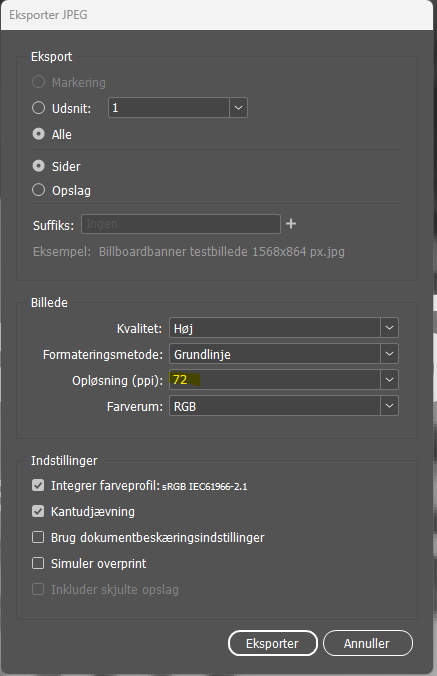
High DPI values (such as 300 DPI) are used for print materials. For online ads, your images only need to be at standard screen resolution (72 DPI)This automatically keeps the file size down without compromising quality.
- Remember to include your URL link
We need to know where the reader lands when they click your banner. Remember to include the exact URL link to the website in your email to us.
- Integrate click tag in HTML5 banners
If you deliver an animated HTML5 banner, it must include a built-in standard click-tagThis is the code that allows us to track clicks and send the reader to your website.
Mini guide: How to reduce the file size of your banner
If your banner is too large, it will be automatically rejected by the system. However, it is quick to get control of the file size, regardless of which program you are working in. Here is a short guide on how to save your banner at the correct size in the four most commonly used programs.
- How to do it: Go to File → Export → Save for Web (Legacy).
- Settings: Select JPEG in the menu.
- Quality: Set the quality (Quality) to Medium or a number between 40-60. Keep an eye on the small number in the bottom-left corner. Here you can see exactly how many kB the file will be before you save.
- How to do it: Click on Share (Share) in the top right → Select Download.
- File type: Select JPG (not PNG, since PNG is often 3–4 times larger).
- Quality: Set the slider to around 80%. This keeps the file size down without visible loss of quality.
- How to do it: Click on File → Save as (or Export).
- File type: Select JPEG or GIF in the “File format” menu.
- Important tip: Before saving, look for the button Tools right next to the Save button → Select Compress imagesSet the resolution to Email (96 ppi) or Web.
- How to do it: Go to File → Export. Select JPEG as the format.
- Export menu: Under Formatting, set the quality to Medium. Under Resolution you should change the number to 72 ppi (DPI).
Kontakt det grafiske team
Mail: online@nordiskemedier.dk